GCP web services used Laravel framework - Part 2

VI. Implement Speech To Text API
You can refer to this main API document page
Install the client library:
composer require google/cloud-speech
Now you can use Speech-to-Text to transcribe an audio file to text.
We will create a controller to handle 3 things:
1. Get the uploaded audio file from the request
2. Convert audio file to FLAC with library FFMpeg
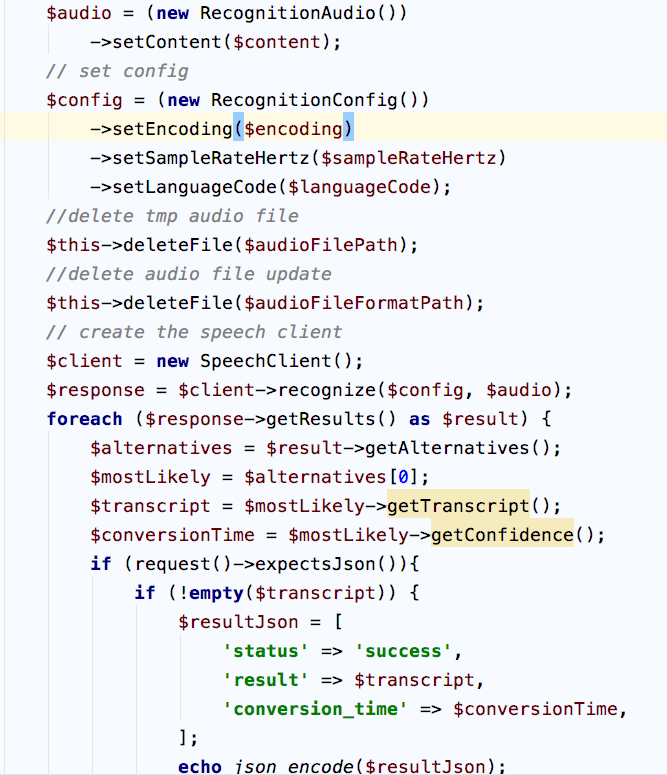
3. Use the below code to show the text received from Speech-to-Text API
In SpeechToTextController:
1. Convert audio file received to FLAC from requests
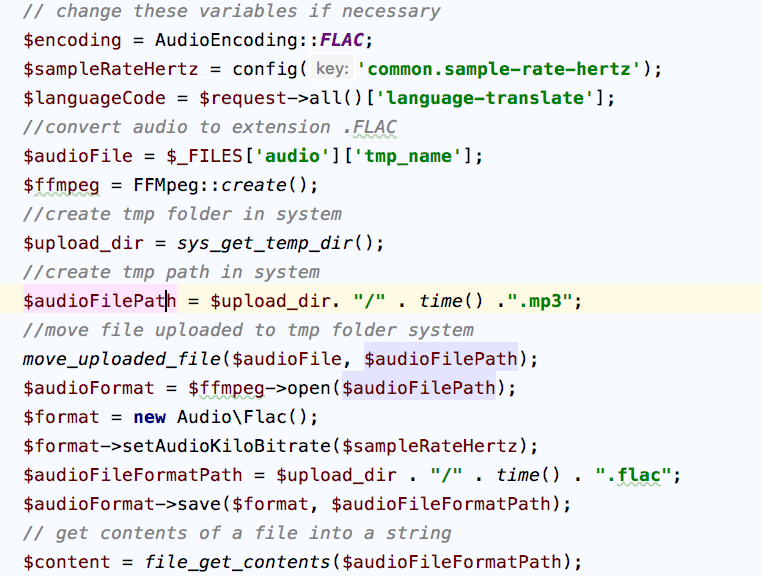
Why conversion to FLAC is necessary?
- All Speech-to-Text API synchronous recognition requests must include a speech recognition config field (of type RecognitionConfig).
- encoding (required) specifies the encoding scheme of the supplied audio (of type AudioEncoding). If you have a choice in the codec, prefer a lossless encoding such as FLAC or LINEAR16 for best performance.
2. Show the text received
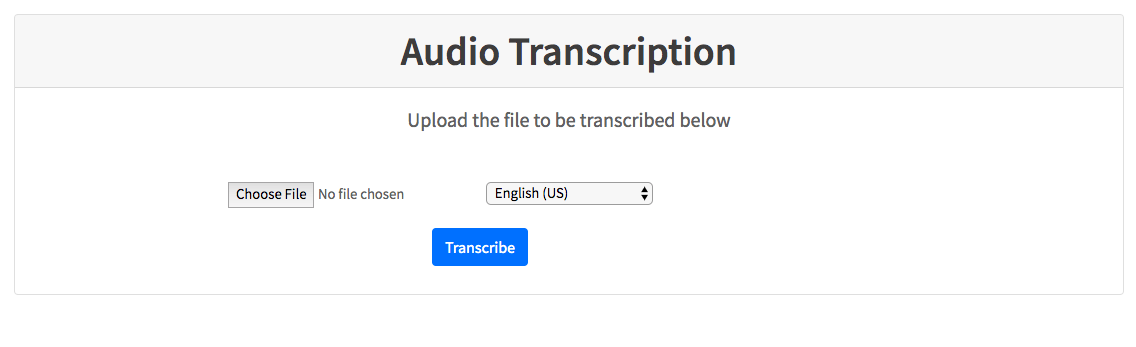
I create a template with only 1 input file named “Choose File“, a button submit named “Transcribe” and a selection to select the language with default “English(US)”
We will choose a Japanese audio file.
And this is the result:
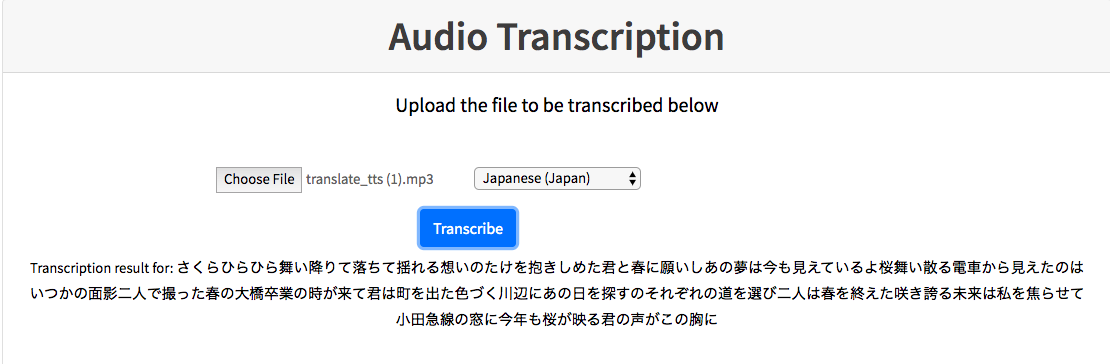
Great! It’s works!
VII. Implement Text To Speech API
You can refer to this main API document page
Install the client library:
composer require google/cloud-text-to-speech
Now you can use Text-to-Speech to create an audio file of synthetic human speech.
We will create a controller to handle 2 things:
1. Get the uploaded text file from the request
2. Use the below code to download an audio file received from Text-To-Speech API
In TextToSpeechController:
1. Prepare everything before conversion
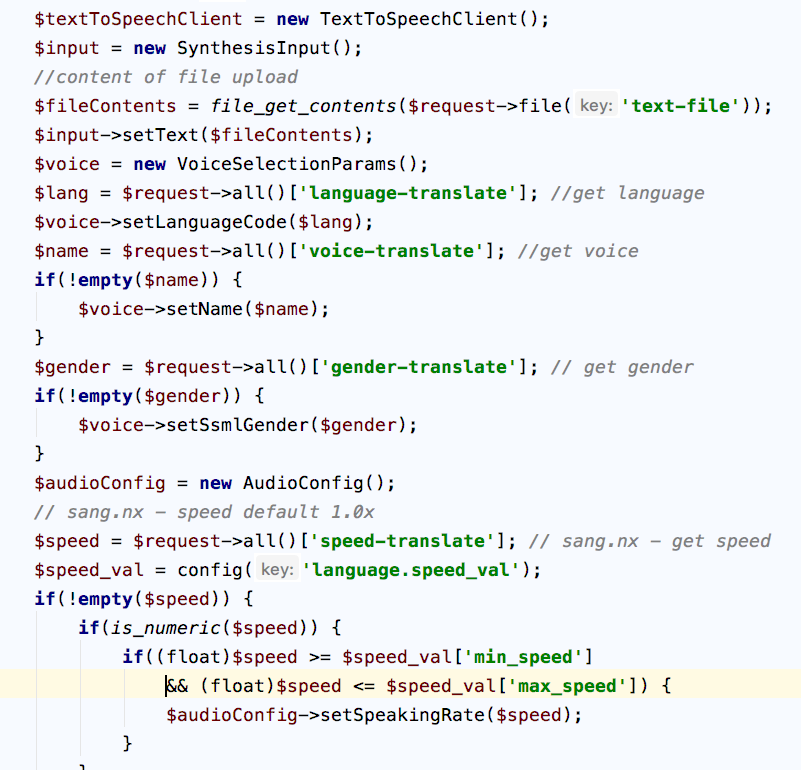
In the image above, I can set some configures for the audio file before converting, such as language, voice, gender, speed…
2. Download the audio file after conversion
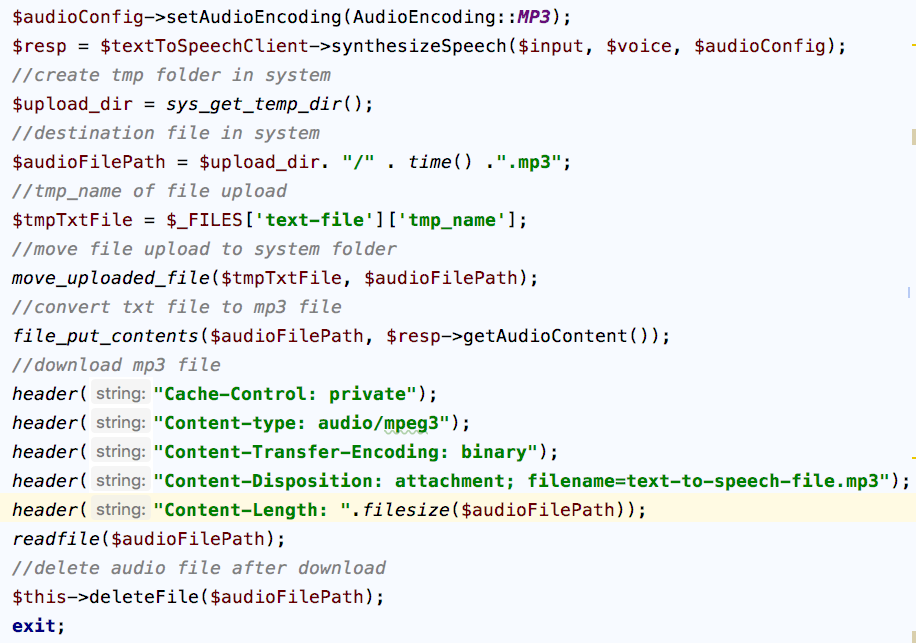
The audio file will be received with the MP3 extension.
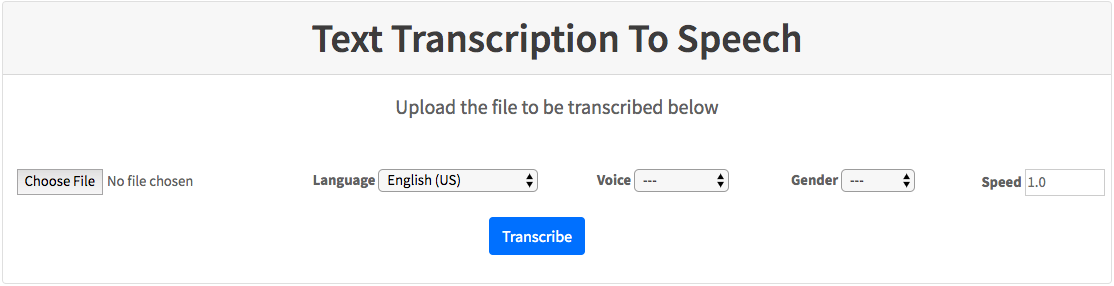
Then I created a template for the Text-to-speech function. But this time, the template will be more detailed.
We will choose a Japanese text file. And select the selections on the screen.
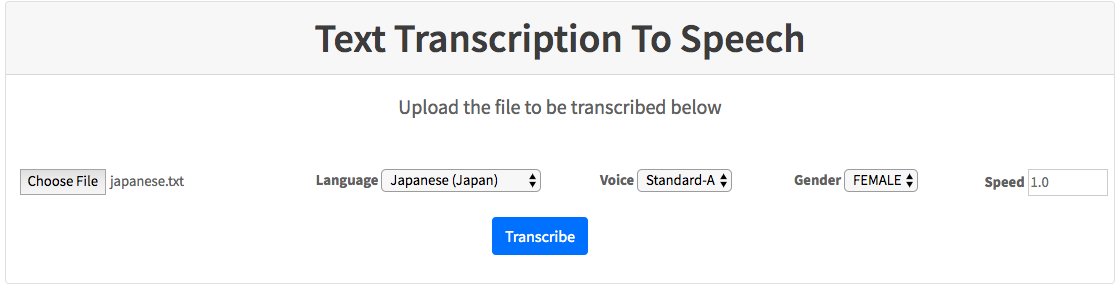
This is the result:
Awesome!!!
References:
1. https://cloud.google.com/vision/docs/ocr#vision_text_detection-php
2. https://cloud.google.com/speech-to-text/docs/quickstart-client-libraries
3. https://cloud.google.com/text-to-speech/docs/quickstart-client-libraries#client-libraries-usage-php